Inception
 Comments (0)
 看著他從13年前Titanic裡青澀的Jack到The Departed裡火爆的Billy﹐到近期一連兩套類似的戲Shutter Island裡面的Teddy和今天Inception裡的Cobb﹐Leonardo Dicaprio真的是越來越有魅力﹐短短十年內﹐演技已經達到爐火純青的地步﹐Hollywood有此等人才的確難得。
回到此片﹐可以說是近年來自Matrix後又一令觀眾深思的電影﹐它極有可能會成為以後這種題材的經典教材。

Comments (0) 看著他從13年前Titanic裡青澀的Jack到The Departed裡火爆的Billy﹐到近期一連兩套類似的戲Shutter Island裡面的Teddy和今天Inception裡的Cobb﹐Leonardo Dicaprio真的是越來越有魅力﹐短短十年內﹐演技已經達到爐火純青的地步﹐Hollywood有此等人才的確難得。
回到此片﹐可以說是近年來自Matrix後又一令觀眾深思的電影﹐它極有可能會成為以後這種題材的經典教材。
個人認為經典的保時捷系列裡最好看的是60年代的901﹑80年代的993以及90年代964﹐他們的外型絕對稱得上是一脈相傳﹐都擁有著正宗的911血統。
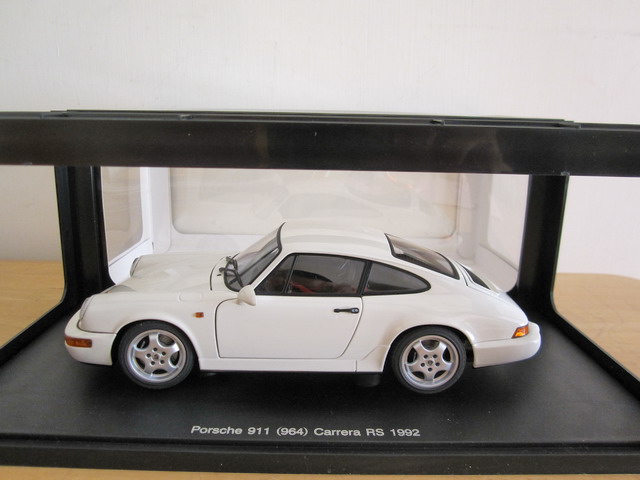
很喜歡最近出的這款1992年白色的Porsche 911 (964) Carrera RS﹐懂得欣賞911的人都會因為有著RS而更加喜出望外。
當然很多保時捷車迷們都會對Turbo系列的超凡性能如痴如醉﹐但唯獨我對Carrera紳士般的外型更為喜愛﹐它的氣質實在來的儒雅和有內涵。
經常留意我博客的朋友可能已經發現了個秘密﹐就是我很少談及超跑的性能。沒錯﹐我更為欣賞的是這些偉大跑車們的外型設計﹗我認為它們之所以吸引我完全是因為他們的“外在美”﹐所以擁有一台真正的超跑對于我來說完全可能是一種浪費﹐因為我對咆哮的引擎和性能暫時還並不發燒(3年前曾有朋友說我將來一定會的)﹐雖然自己大學修讀的專業是機械工程。
其實車模帶給我的最大樂趣莫過于把這些超跑美和吸引人的角度從照片上體現出來﹐很多時候我都深深地沉醉于場景構思和拍攝角度中﹐自得其樂﹐悠哉悠哉。
那麼車模帶給你們的最大樂趣又是什麼呢﹖
1/18 Autoart Porsche 911 (964) Carrera RS 1992
Found this really useful information in the Veeam’s forum (contributed by Anton), a great place to learn about the product and their staff are all very caring and warm.
The formulas we use for disk space estimation are the following:
Backup size = C * (F*Data + R*D*Data)
Replica size = Data + C*R*D*Data
Data = sum of processed VMs size (actually used, not provisioned)
C = average compression/dedupe ratio (depends on too many factors, compression and dedupe can be very high, but we use 50% – worst case)
F = number of full backups in retention policy (1, unless periodic fulls are enabled)
R = number of rollbacks according to retention policy (14 by default)
D = average amount of VM disk changes between cycles in percent (we use 10% right now, but will change it to 5% in v5 based on feedback… reportedly for most VMs it is just 1-2%, but active Exchange and SQL can be up to 10-20% due to transaction logs activity – so 5% seems to be good average)
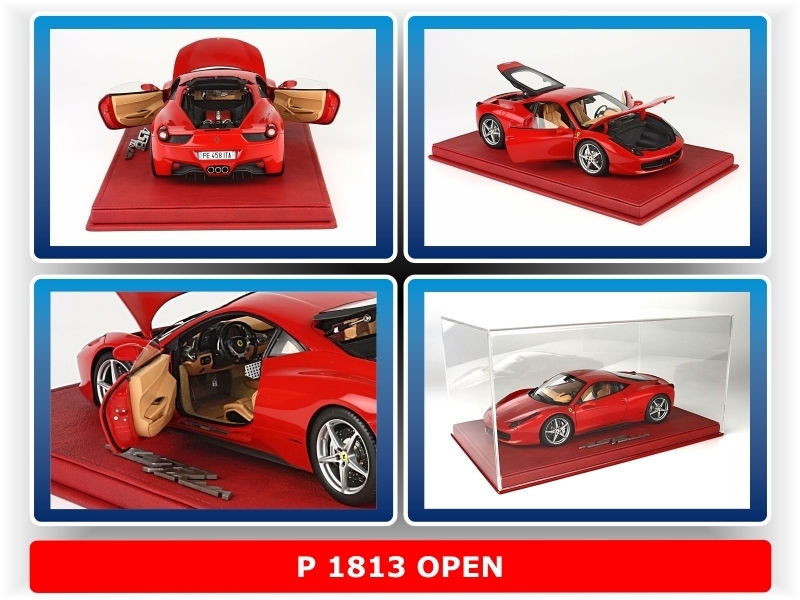
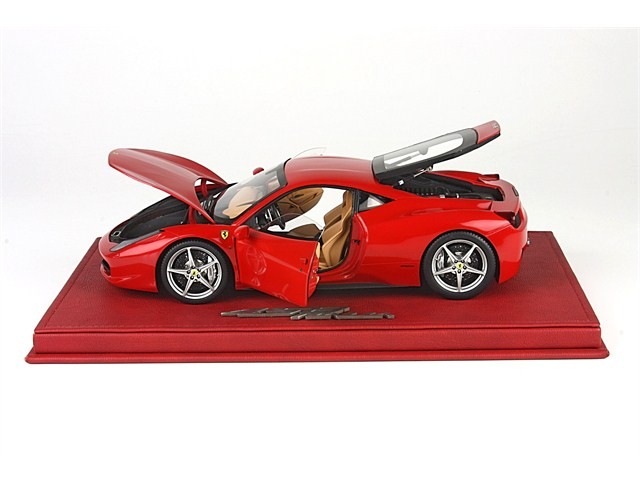
最近在MC看到上海沙沙的回答﹐估計如果真的成事﹐價格最少在6千以上﹕
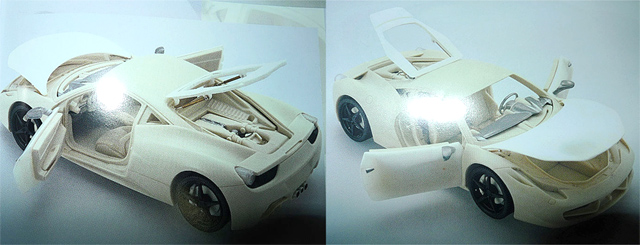
我把我知道的和大家分享一下。摟主觀察得很仔細,的确那個白模(灰模)并非烽火輪的。合金模型的零部件眾多,他的灰模也不是這個樣子。這個其實是bbr 手版模型試圖生產開門版本的一個試驗模型。很遺憾這個模型最終沒有被通過,兩個原因—-第一造价的昂貴(1多開模,2必須用技術水平極高的師傅才能組裝,3損坏率高)用這樣的成本生產出來以后,能夠承受得了這個价格的客人估計已經很少了。 第二,要解決開啟次數能足夠多,而接縫不變形,這些存在一些技術上的難關。 所以BBR目前暫時放棄了生產開門458手版的計划。至于以后是否可以做開門的手版模型,這個不得而知。 BBR合金的458是否能生產開門版本的,目前沒有說會生產,但是也沒有說一定不生產。只能說生產的可能性很小,其實不必糾結在這里了。
The followings are my own findings about Veeam Backup v5:
I am still not sure if the target storage requires very fast I/O or high IOPS device like 4-12 RAID10/RAID50 10K/15K SAS disks as some say the backup process with de-duplication and compress is random, some say it’s sequential, so if it’s random, then we need fast spindle with lots of disks, if it’s sequential, then we only need cheap 7200RPM SATA disks, a 4 RAID 5 2TB will be the most cost effective solution for storing the vbk/vik/vrk images.
Some interesting comments quote from Veeam’s forum relating to my findings:
That’s why we run multiple jobs. Not only that, but when doing incremental backup, a high percentage of the time is spent simply prepping the guests OS, taking the snapshot, removing the snapshot, etc, etc. With Veeam V5 you get some more “job overhead” if you use the indexing feature since to system has to build the index file (can take quite some time on systems with large numbers of files) and then backup the zipped index via the VM tools interface. This time is all calculated in the final “MB/sec” for the job. That means that if you only have a single job running there will be lots of “down time” where no transfer is really occurring, especially with incremental backups because there’s relatively little data transferred for most VM’s compared to the amount of time spent taking and removing the snapshot. Multiple jobs help with this because, while one job may be “between VM’s” handling it’s housekeeping, the other job is likely to be transferring data.
There are also other things to consider as well. If you’re a 24×7 operation, you might not really want to saturate your production storage just to get backups done. This is admittedly less of an issue with CBT based incrementals, but used to be a big deal with ESX 3.5 and earlier, and full backups can still be impacting to your production storage. If I’m pushing 160MB/sec from one of my older SATA Equallogic arrays, it’s I/O latency will shoot to 15-20ms or more, which severely impacts server performance on that system. Might not be an issue if your not a 24×7 shop and you have a backup window where you can hammer you storage as much as you want, but is certainly an issue for us. Obviously we have times that are more quiet than others, and our backup windows coincide with our “quiet” time, but we’re a global manufacturer, so systems have to keep running and performance is important even during backups.
Finally, one thing often overlooked is the backup target. If you’re pulling data at 60MB/sec, can you write the data that fast? Since Veeam is compressing and deduping on the fly, it can have a somewhat random write pattern even when it’s running fulls, but reverse incrementals are especially hard on the target storage since they require a random read, random write, and sequential write for ever block that’s backed up during an incremental. I see a lot of issue with people attempting to write to older NAS devices or 3-4 drive RAID arrays which might have decent throughput, but poor random access. This is not as much of an issue with fulls and the new forward incrementals in Veeam 5, but still has some impact.
No doubt Veeam creates files a lot differently that most vendors. Veeam does not just create a sequential, compressed dump of the VMDK files.
Veeam’s file format is effectively a custom database designed to store compressed blocks and their hashes for reasonably quick access. The hashes allow for dedupe (blocks with matching hashes are the same), and there’s some added overhead to provide additional transactional safety so that you VBK file is generally recoverable after a crash. That means Veeam files have a storage I/O pattern more like a busy database than a traditional backup file dump.
14天前:明天是還在外地讀書的女朋友生日,買了個佳能50D套机【7800RMB】照點相片紀念。新机到手于是先跑到公園試拍,正在公園拍攝荷花的老頭說佳能成像太肉,尼康比較銳利,還現場用事實說話,于是后悔。
13天前:把佳能相机干脆當做禮物送給了女朋友,自己回家路上買了尼康D300s套机16-85mm【14800RMB】,另外還買了台筆記本電腦【5400RMB】,不然照片照出來沒得地方觀賞。
12天前:發現焦距不夠長,于是發現尼康AF-S DX VR 18-200mm F3.5-5.6GIF-ED【5600RMB】可以一鏡走天下,安逸,于是買了它。買來當天就去打鳥了。正巧遇見一些攝影家也在河邊拍白鶴,天呢,別人用的是尼康AF-S 300mm F4DIF-ED鏡頭,一問价格【8000RMB】,再看看別人的照片,如果不買一個怎么能拍出別人那樣的好看的照片呢,再次出血。本來有個尼康AF-S300mm F2.8 IF-ED II的,但是要三万多,買不起。
11天前:前兩天認識几個影友,說今天去拍模特人像,說85/1.4D【7000RMB】很不錯,買一個帶去會有很好的收獲,于是下手買了它。帶去拍攝的時候發現想拍兩張模特全身都比較困難。很懊惱。
10天前:我家妹妹說給她拍點照片做相冊,一想要是50/1.4mm【4000RMB】多好,于是馬不停蹄買了個。莫說,這回是比昨天照得更全面一些。但是總覺得比較肉。
9天前:單位喊我去幫忙拍攝生產車間的全貌,把全部鏡頭掏出來,都沒得一個超廣角,為了在領導面前顯示自己攝影很得行,于是立馬買了個12-24mm/F4G IF-ED【8200RMB】。
8天前:今天加入了攝影協會,攝影群,瀏覽攝影网站[攝影無忌];[太平洋攝影];[大眾攝影];[車壇影協];[新攝影];[蜂鳥网];[中國攝影家];[路客驢舍];[橡樹攝影]等等,發現一個問題,全畫幅相机可以在成像上得到更大优勢。主要的就是我昨天的車間拍攝最為例子。要是尼康D700【13800RMB】配上12-24mm/F4GIF-ED,省去乘那1.5的系數,還有那超高感光,那就是什么都解決了。通過网絡的學習,決定添置D700全畫幅是沒有錯的。于是把D300s套机送給了自家妹妹。
7天前:和攝影家協會的人員來往,听說D700和12-24;24-70;70-200是全世界最絕配的搭檔。都上全畫幅單反了,不上牛頭那怎么行?由于太貴,所以敗了個水貨24-70/2.8【12000RMB】,70-200/2.8【14500RMB】。
6天前:買了不少攝影書,訂了不少報紙刊物【1200RMB】,上班下班都在看,研究軟件處理照片,結識了一些攝影發燒友。
5天前:發燒友們的照片,几乎都是定焦拍攝的,變焦靠走,成像質量上等一流。确實這些天來用了不少錢,手頭緊張,据說定焦也用得比較少,于是就買了兩個副厂的貨,一個是适馬30mm F1.4 EX DC HSM鏡頭【3300RMB】,一個騰龍SP AF 180mm F3.5 Di LD-IF鏡頭【8300RMB】,在圖麗鏡頭里面确實是選不出一個定焦。
4天前:發現适馬鏡頭照片色彩偏綠,銳度和飽和度都比較惱火,騰龍照出來一片灰調,卡白卡白的。這才明白一個道理,為什么發燒友們用的都是原裝定焦頭,真是貴得所值。那現在怎么辦,只有再選原厂鏡頭。再次敗了尼康AF DX Fisheye 10.5mm F2.8G ED鏡頭【5500RMB】,尼康 Ai AF 18mm F2.【8100RMB】,尼康AF-S Micro NIKKOR 60mm F2.8G ED鏡頭【5500RMB】。還有個确實不敢買的尼康PC-E NIKKOR 24mm f/3.5D ED鏡頭,這可是個移軸鏡頭,拍建筑非常好,兩万多塊錢喲。
3天前:差中長焦遠射定焦頭,再次購得尼康Ai AF DC 135mm F2D鏡頭【7200MRB】,外加前几天買的300/F4已經夠了,像尼康AF-S 600mm F4G ED VR鏡頭确實不敢買,市場价九万多。
2天前:听說鏡頭保護不好容易發霉,需要干燥放置,于是買了個電子干燥箱,花了我一個月的工資【4000RMB】。中午听說路客驢舍戶外組織爬山露營以及攝影采風活動,于是帶上了相机器材和露營裝備等物出去了。
昨天:由于前一天參加活動,相机太重,導致脖子扭傷及病倒。去醫院看病和保健按摩花費【250RMB】,出院回家路上順便去了趟攝影器材城,給商家講述自己病的情況,結果喊我買了卡片机佳能G11【4350RMB】。本來分別有2万多元的徠卡M8和六万多的徠卡M9的,可錢包里面怎么也沒得那么多錢。
今天:女朋友放假來到我家,打開她背包一看,除了我送她的佳能套机外包包里面多了17-40/4.0【4800RMB】;50/1.8【700RMB】;70-200/2.8L is USM【13000RMB】外加一些配件和包包【2800RMB】,當場我就傻了,她把這些年的獎學金全部用光了。打電話喊妹妹回來陪未來嫂子耍,妹妹說正在器材城看全畫幅相机,當場耳鳴頭暈。
PS:功夫不負有心人,下午一年多沒有聯系的出版社編輯朋友說來家拷點我的照片印到書上去,确實讓我高興了不少,走的時候問他出什么書,他說《錯誤的曝光与构圖》示范實例教科書,當時就想一腳架碾過去。
明天:以我現在每月2000元的支付能力計算,我將需要N年才能來完成還清在朋友那和銀行的借貸款。當然期望快點漲工資,我還有個尼康D3X沒有買【45000元】以及剛剛听別人介紹的瑪米亞DM28中畫幅數碼相机【十一万左右】。
未來:我也要四處宣傳玩單反相机的好。
PS:一年后,和女友結婚去了外地工作,家里房屋拆遷,70歲的奶奶在家把所有相机鏡頭以每斤5毛錢賣給了廢鐵收購站。唯獨還剩下一個佳能50/1.8,收廢鐵的說全是塑料,不要!
Some operating system SKUs are hard-limited to run on a fixed number of CPUs. For example, Windows Server 2003 Standard Edition is limited to run on up to 4 CPUs. If you install this operating system on an 8-socket physical box, it runs on only 4 of the CPUs. The operating system takes advantage of multi-core CPUs so if your CPUs are dual core, Windows Server 2003 SE runs on up to 8 cores, and if you have quad-core CPUs, it runs on up to 16 cores, and so on.
Virtual CPUs (vCPU) in VMware virtual machines appear to the operating system as single core CPUs. So, just like in the example above, if you create a virtual machine with 8 vCPUs (which you can do with vSphere) the operating system sees 8 single core CPUs. If the operating system is Windows 2003 SE (limited to 4 CPUs) it only runs on 4 vCPUs.
Note: Remember that 1 vCPU maps onto a physical core not a physical CPU, so the virtual machine is actually getting to run on 4 cores.
This is an over simplication, since vCPUs are scheduled on logical CPUs which are hardware execution contexts. These can be a while CPU in the case of a single core CPU, or a single core in the case of CPUs that have only 1 thread per core, or could be just a thread in the case of a CPU that has hyperthreading.
Consider this scenario:
In the physical world you can run Windows 2003 SE on up to 8 cores (using a 2-socket quad-core box) but in a virtual machine they can only run on 4 cores because VMware tells the operating system that each CPU has only 1 core per socket.
VMware now has a setting which provides you control over the number of cores per CPU in a virtual machine.
This new setting, which you can add to the virtual machine configuration (.vmx) file, lets you set the number of cores per virtual socket in the virtual machine.
To implement this feature:
For example:
Create an 8 vCPU virtual machine and set cpuid.coresPerSocket = 2. Window Server 2003 SE running in this virtual machine now uses all 8 vCPUs. Under the covers, Windows sees 4 dual-core CPUs. The virtual machine is actually running on 8 physical cores.
Note:
Important: When using cpuid.coresPerSocket, you should always ensure that you are in compliance with the requirements of your operating system EULA (Regarding the number of physical CPUs on which the operating system is actually running).
Update Apr 19
One good example is Windows Server 2003 Web Edition limited to 2 CPU sockets only, so if you assign 8 vCPUs, it will only see 2, by setting cpuid.coresPerSocket = 4 and assign 8 vCPUs, it means your server will have 2 CPU sockets and each socket will have 4 cores, so this manually override the default and allows you to have 8 CPUs technically speaking 8 Cores with Windows Server 2003 Web Edition which is previously impossible before ESX 4.1. 
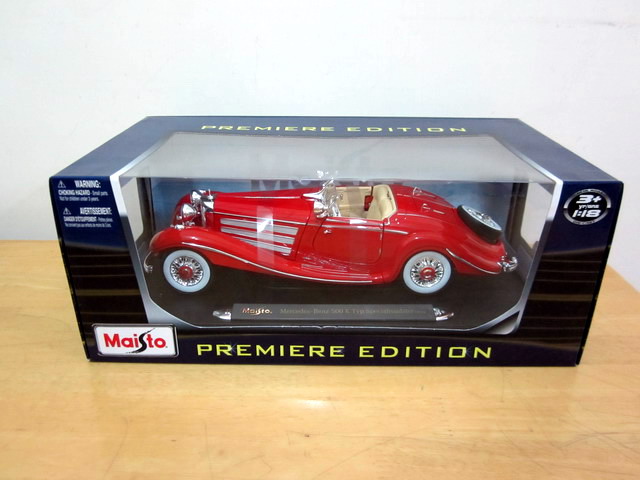
今天去百貨公司買家品﹐臨走的時候經過玩具區突然發現了與眾不同的它。
深深地吸引著我眼球的完全是那紅火色流線型的車身﹐高貴中帶有極其不凡的氣質﹐當時還沒來的急看清楚﹐遠看只知道是台老爺車。
雖然自己對1950年前的車不大感興趣﹐但它還是令我刮目相看。細看內容之下﹐知道這次肯定又撿到了寶貝﹐1936年特別版的開篷奔馳500K﹐還隱約記得很多年前CMC曾經出過這系列﹐但就是沒出過開篷的版本。此車極有可能是Maisto車模歷史裡做工最好的一款﹐性價比絕對稱得上一流﹐油漆光亮﹐車頭燈﹑輪子及發動機刻劃細緻﹐而且開關部件之多完全對得起這個價位。其實沒它﹐收它純粹是因為它出類拔萃﹐氣宇不凡漂亮的外型。
它應該是我收藏品裡年代最悠久的一員﹐這台1936年的奔馳500K應該跟我那紐約布魯克林大橋的背景挺佩搭的﹐改天一定要付諸行動拍個天昏地暗才成。
1/18 Maisto Mercedes-Benz 500K Type Special Roadster (1936)
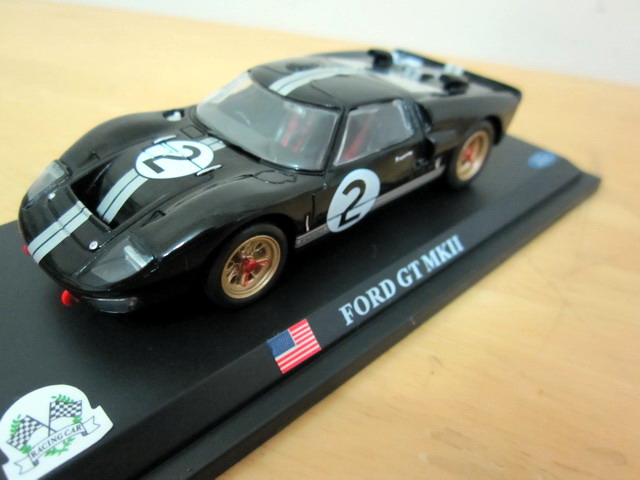
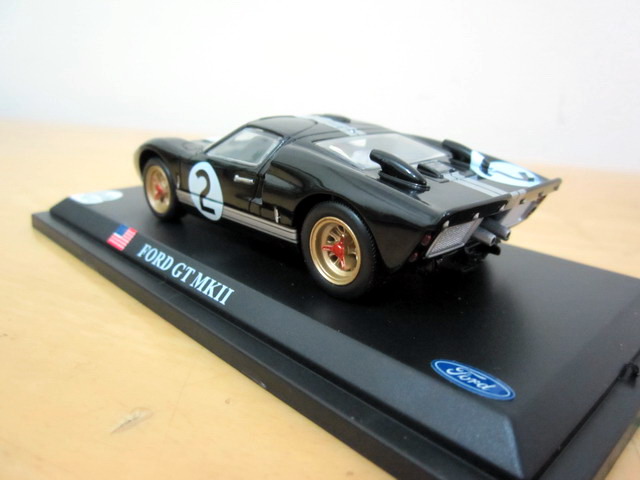
Ford GT 40 MK 系列曾經在世界超跑賽道歷史上佔有一個極其重要的席位﹐我特別喜歡這個系列裡的MK II﹐因為它那幾乎趴在地上的扁平車身﹐加上兩隻大大的眼睛﹐其實MK II 氣勢來的更像南美洲的眼睛蛇﹐伺機把對手隨時KO。
delPrado這款Ford GT MKII性價比來的很高﹐因為年代已久﹐所以車身難免有些泡泡﹐但作為收個車型來說﹐還是特別值得的。
1/43 delPrado Ford GT 40 MKII