Different Methods to Get ESX Host Hardware Alerts via Email

By admin, March 23, 2011 12:59 pm

Basically, there are 3 methods to get instant email alert via email by using VMware vCenter, Dell iDRAC and Dell IT Assistant (ITA) which I will focus the most, 2 of them are specific to Dell Poweredge Serer and ITA solution.

Method 1: How to get hardware failure alert with vCenter

This is the easiest but you do need to have vCenter, so it may not be a viable solution for those using free ESXi (there are scripts to get alert for free ESXi, but it’s not the content of today’s topic).

From the top of the hierarchy in vCenter, click Alarms, then New Alarm, give it a name say “Host Hardware Health Monitor”, in Triggers, Add, select “Hardware Health Changed” under Event and “Warning” for Status, Add another one with the same parameter except “Alert” for Status. Finally, for Actions, choose “Send a notification email” under Action and put your email address there.

Of course, you need to configure SMTP setting in vCenter Server Settings first.

Method 2: How to get hardware failure alert with Dell iDRAC

This is probably is even more simple than the above, but it does not report all of the hardware failure in ESX Host, so far I can say it doesn’t report harddisk failure which is very critical for many, so I would call this is a half working or a handicapped solution.

Login to iDRAC, under Alerts, setup Email Alerts and SMTP server, you will need to setup a SMTP server on your dedicated DRAC network to receive such alerts and forward those email alert to your main email server on external. Under Platform Events, you need to CHECK Enable Platform Events Filter Alerts and leave all the default as it is. As you have probably found out already and scratching your head now, how come Dell didn’t include Storage Wanring/Critical Assert Filter? For that question, you need to ask Michael Dell directly.

Btw, I am using iDRAC6, so not sure if your firmware contains such feature.

Method 3: How to get hardware failure alert with Dell IT Assistant (ITA)

This is actually today’s main topic I would like to focus on, it is the proper way to implement host alert via SNMP and SNMP Trap and it does provide a complete solution, but quite time-consuming and a bit difficult to setup. I tried to consolidate all the difficult part, eliminated all the unnecessary steps and use as much GUI as possible without going into CLI.

  1. Install ITA latest version which is 8.8 (while 8.9 is coming, but still not available for download). One thing you need to take care is to put the ITA network within the same management network of ESX Hosts or add a NIC that connects to the server network that need to be monitored.
  2. Install OSMA 6.3 or above (6.5 is on the way) on ESX 4.1 Hosts, as I found OSMA version 6.3 is already configured with some important necessary steps like SNMP trap setting to be used later.
  3. Edit the SNMP conf file under /etc/snmp/snmpd.conf, replace public with your own community_stringe.g. com2sec notConfigUser  default       public
  4. Restart the SNMPD service by /sbin/service snmpd restart.
  5. Enable SNMP Server under Security Profile using vSphere Client GUI, that will enable UPD Port 161 for receiving and UPD Port 162 for sending out SNMP Traps.
  6. Start to discover and inventory in ITA, you will find ESX hosts are added to Server Section. This completes the Pull side (ie, ITA Pull stuff from ESX Hosts), next we need to setup the Push side (ie, ESX Hosts Push alerts to ITA)
  7. Done? Not Yet, in order for ESX host to send snmp trap to ITA , you will need to specify the communities and trap targets with the command using VMware PowerCLI.

    vicfg-snmp.pl –server <hostname> –username <username> –password <password> -t <target hostname>@<port>/<community>

    For example, to send SNMP traps from the host esx_host_ip to port 162 on ita_ip using the ita_community_string, use the command:

    vicfg-snmp.pl –server esx_host_ip –username root –password password -t ita_ip@162/ita_community_string

    for multiple targets, use , to seperate the rest trap targets:

    vicfg-snmp.pl –server esx_host_ip –username root –password password -t ita_ip@162/ita_community_string, ita_ip2@162/ita_community_string

    To show and test if it’s working
    vicfg-snmp.pl –server esx_host_ip –username root –password password — show
    vicfg-snmp.pl –server esx_host_ip –username root –password password — test

  8. Remove all VM related alerts from Alert Categories under ITA, leaving ONLY vmwEnvHardwareEvent as I only want ITA to report EXS Host Server Hardware related warning or critical alerts. The reason is I found ESX sometimes generate many useless false alarms (e.g., “Virtual machine detects a loss in guest heartbeat”) regarding VM’s heardbeat which is related to VMTools installed in the VM.
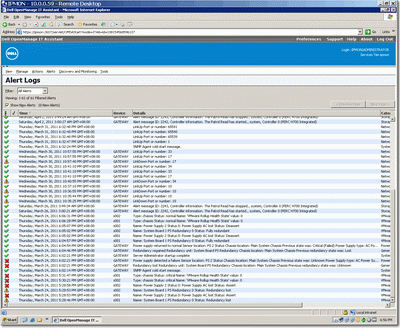
itaRemember to enable UPD Port 162 on ITA server firewall. Simply treat ITA as a software device to receive SNMP Trap sent from various monitoring hosts.

Another thing is for Windows hosts to send out SNMP Trap, you will also need to go to SNMP Service under the Traps tab, configure the snmp trap ita_community_string and the IP address of the trap destination which should be the same as ita_ip.

So I did a test by pulling one of the Power Supply on ESX Host, and I get the following alert results in my inbox.

From ITA:
Device:sXXX ip address, Service Tag: XXXXXXX, Asset Tag:, Date:03/22/11, Time:23:18:38:000, Severity:Warning, Message:Name: System Board 1 PS Redundancy 0 Status: Redundancy

From iDRAC:
Message: iDRAC Alert (s002)
Event: PS 2 Status: Power Supply sensor for PS 2, input lost was deasserted
Date/Time: Tue Mar 22 2011 23:26:18
Severity: Normal
Model: PowerEdge RXXX
Service Tag: XXXXXXX
BIOS version: 2.1.15
Hostname: sXXX
OS Name: VMware ESX 4.1.0 build-XXXXXXXX
iDrac version: 1.54

From vCenter:
Target: xxx.xxx.xxx.xxx Previous Status: Gray New Status: Yellow Alarm Definition: ([Event alarm expression: Hardware Health Changed; Status = Yellow] OR [Event alarm expression: Hardware Health Changed; Status = Red]) Event details: Health of Power changed from green to red.

What’s More

Actually there is Method 4 which uses Veeam Monitor (free version) to send email, but I haven’t got time to check that out, if you know how to do it, please drop me a line, thanks.

Finally, I would strongly suggest Dell to implement a trigger that will send out email alert directly from OpenManage itself, it’s simple and works for most of the SMB ESX Host scenario that contains less than 10 hosts in general, you can say this is Method Number 5.

Update Mar-24:
I got ITA working for PowerConnect switch as well, so my PowerConnect can now send SNMP trap back to ITA and generate an email if there is warning/critical issue, it’s really simple to setup PowerConnect’s SNMP community and SNMP trap setting, and I start to like ITA now, glad I am not longer struggling with DMC 2.0.

Finally, there is a very good document about setting up SNMP and SNMP Traps from Dell.

Update Aug-24:
If you are only interested to know if any of your server harddisk failed, then you can install LSI Megaraid Storage Manager which has the build-in email alert capability.

Thin Provisioning at BOTH Equallogic and ESX Level

By admin, March 21, 2011 12:42 pm

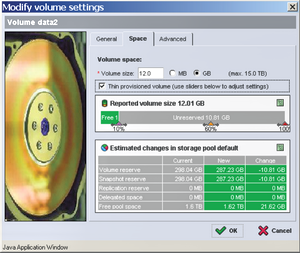
After several months of testing with real world loading, I would say the most optimized way to utilize your SAN storage is to enable Thin Provisioning at BOTH the Storage and Host.

  • By enabling Thin Provisioning on Equallogic, you will be able to create more volumes (or luns) for the connecting ESX hosts to use as VMFS or RDM space for the connecting VMs.
  • By enabling Thin Provisioning on ESX host, actually this is on VMFS to be exact, you will significantly gain VMFS space utilization and put more VMs on it, I was able to get at least 40 to 100% space saving on some of VMFS. It’s definitely great for service providers who always want to put those under-utilized VMs and group them together using Thin Provisioning.

thinproOne thing you need to constantly check is space will not grow over to 100%, you can do this by  enable vCenter Alarm on space utilization and stay alerted, I’ve encountered one time that a VM suddenly went crazy and ate all the space it allocated, thus tops VMFS threshold as well as Equallogic threshold at the same time. 

This is the only down side you need to consider, but the trade off is minimum considering the benefit you get when using Thin Provisioning at BOTH Equallogic and ESX Level.

Of course, you should not put a VM that constantly need more space over the time into the same thin provisioned volume with others.

Finally, not to mention it’s been proved by VMware that the performance penalty for using Thin Provisioning is almost none (ie, identical to thick format) and it’s amazing using VMFS is even faster than RDM in many cases, but that’s really another topic “Should I or Should I NOT use RDM”.

* Note: One very interesting point I found that is when enabling Thin Provisioning on storage side, but use Thick format for VM, guess what? The storage utilization ONLY shows what’s actually used within that VM, ie, if the thick format VM is 20GB, but only 10GB is actually used, then on thin provisioned storage side, it will show ONLY 10GB is allocated, not 20GB.

This is simply fantastic and intelligent! However, this still doesn’t help to over allocate the VMFS space, so you will still need to enable Thin Provisioning in each individual VM.

Sometimes, you may want to convert the original Thick to Thin by using vMotion the Datastore, another great tool without any downtime, especially if your storage support VAAI, then this conversion process only takes a few minutes to complete.

停車場的英倫經典

By admin, March 20, 2011 9:28 pm

沒新車模出的日子﹐繼續搜索停車場的寶貝們。

今天迎來的是一堆英倫經典中的經典﹐車主們的品位看來和他們在這個曾經是英國殖民地接受的教育有關﹐應該都是那些很懂得經典車歷史和文化的精英。

Rolls-Royce Corniche﹐The Corniche was named “Silver Shadow Mulliner Park Ward two door fixed head coupé ” (alternatively – drop head coupé ) before 1971 when the Corniche name was applied. 想不到40年後竟然還有人經常開這70年代的勞斯萊斯出現在香港的道路上﹐迎來的一定是很多讚賞的目光﹐車主絕對是“識貨”之人士也﹗

Rolls-Royce Silver Spur﹐八十年代出生的它經歷了香港最輝煌的那段歷史﹐當年殖民地時代的半島酒店就曾經採購了12台Silver Spur﹐車和司機們一字排開﹐那才叫做威風。

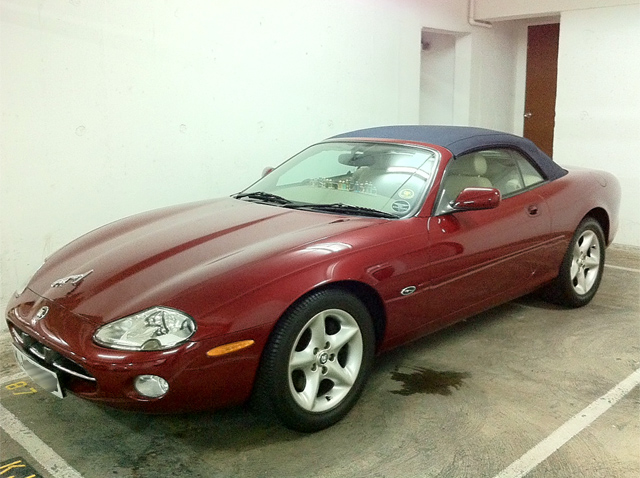
Jaguar XK8﹐典雅的車身每天都是那麼光潔﹐乾淨的令人驚訝﹐前車窗整齊排列著一系列的迷你版香水﹐車主應該是個很有氣質的淑女﹐而且她自己配置了個原廠的捷豹標誌(原XK8沒有的配件)﹐網上查了查﹐原來當年的XK8和Aston Martin的DB7是共用同一引擎和很多零件的。

Rolls-Royce Corniche

01

Rolls-Royce Silver Spur

02

Jaguar XK8

03

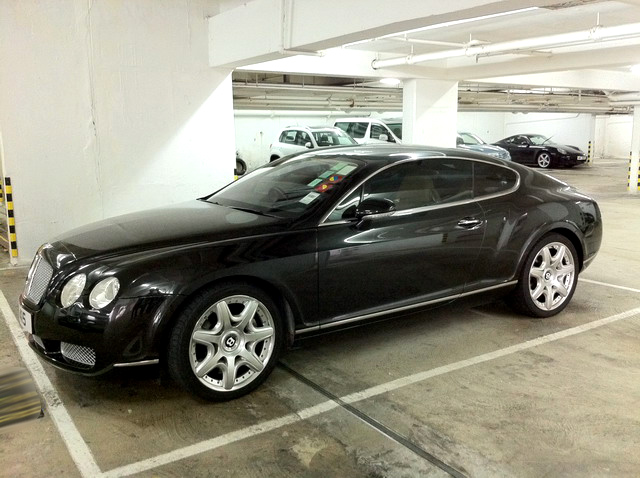
樓下停車場的新車: Bentley Continental GT

By admin, March 19, 2011 6:14 pm

看來那個伯伯鄰居終于闊出去了﹐可能每天進出停車場都會看到那台火紅色的F458刺激得連他也忍不住購入心目中的Dream Car﹐雖然這是輛05年的二手賓利GT﹐但這車怎麼都比那“科幻怪物”強多了﹐渾身上下的英倫氣派表露無疑﹐真好看﹗想著想著﹐我也開始心動了﹐唉﹐無奈身邊什麼都不太缺﹐就是缺$$$。 :)

另外最近還發現鄰居有台咆哮震天的六七十年代美國肌肉車經常出現﹐可能是Dodge Charger或者是Challenger ﹐美國大汽缸引擎的咆哮聲的確來到與眾不同﹐完全可以稱之為十分悅耳好聽﹗那誇張寬闊的車身幾乎把整條馬路都給霸佔了﹐想不到連這麼冷門的美國車都又人玩﹐還真實實在在地開在了香港的高速公路上﹐真利害﹗看來車主一定是在美國生活了好一陣子﹐完全感染了當地的文化和汽車的精髓﹗

1

Update:

Wow! I finaly saw it today, it’s a 1970 Chevelle, the sound of the engine is so unique, so it’s been CONFIRMED!

無奈: 可憐的小牛和中國人

By admin, March 16, 2011 10:24 pm

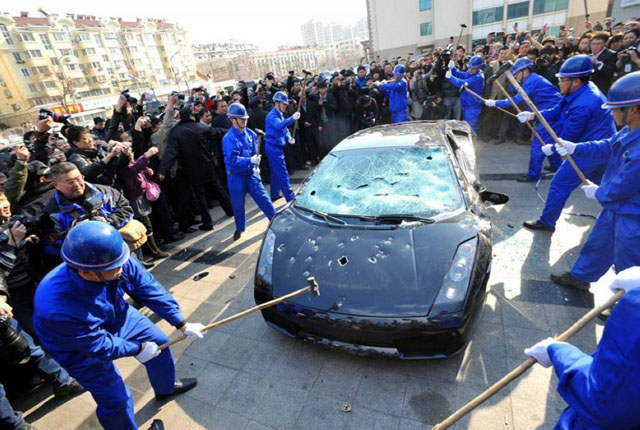
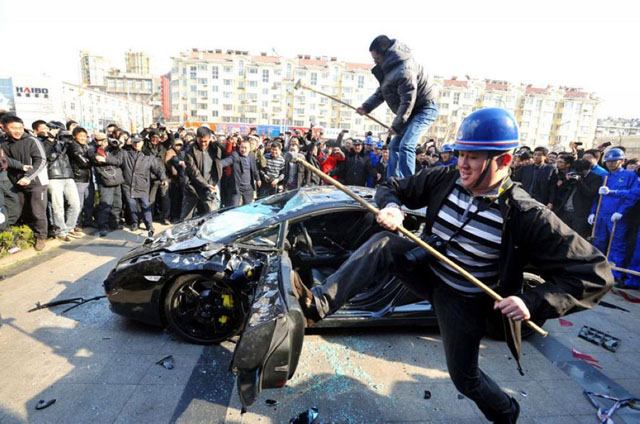
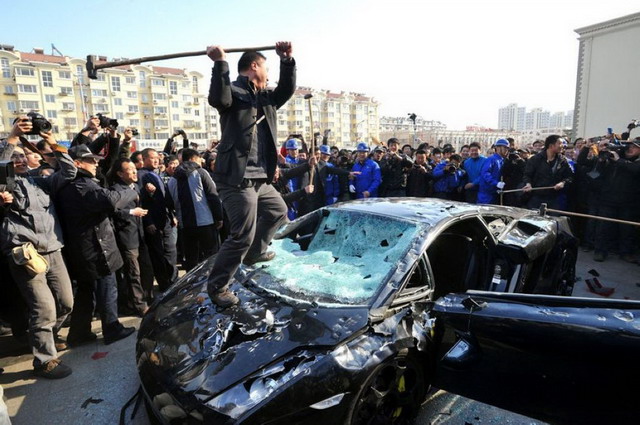
今天看到的一段新聞﹐這樣的事情看來只會在中國大陸發生﹐可憐的小牛Gallardo和中國人。看見沒有﹐拿著傢伙的工人砸著的時候竟帶有詭異的笑容﹐令我不寒而慄﹐難道中國人真的有根深蒂固的“小農”基因﹖I am not sure what Jeremy of Top Gear would say if he ever came across this news. :)

据车主介绍,2010年11月29日,这辆购入不久的跑车,就在青岛出现了发动机不打火的故障。车主与该公司青岛销售店联系后,车由青岛销售店委托的维修服务商安排的拖车运至指定的维修店。没想到的是,运至维修店后,不但发动机故障没有得到解决,车辆保险杠和底盘也受损断裂。

经多次维权仍不能圆满解决,车主决定砸毁这辆兰博基尼。昨日下午3:15,在青岛一灯具城门口,车主雇人将这辆价值300万的兰博基尼盖拉多跑车,砸得面目全非。

1

2

3

Happy Tennis: 2nd Year Anniversary (2週年紀念)

By admin, March 15, 2011 5:43 pm

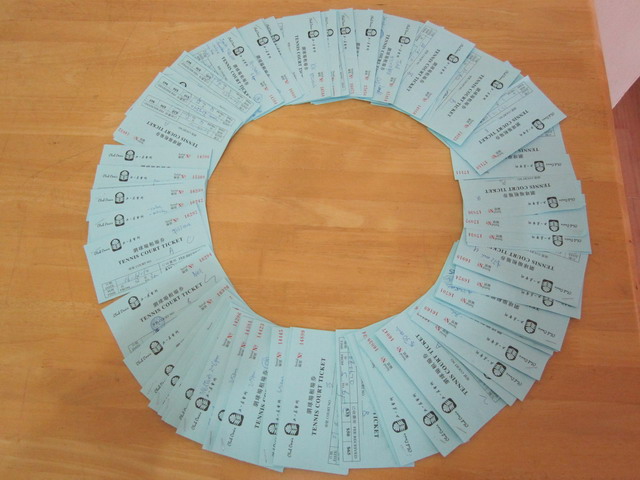
今天是我在香港討論區網球版的兩週年紀念。

在過去的兩年裡﹐跟超過120位朋友切磋過﹐他們幾乎都有自己的秘技和不同的打法﹐從他們的身上我學到了很多寶貴的經驗如冷靜的頭腦﹑完善的計劃﹑堅人的毅力﹑爆炸的力量等﹐這都使我本身的技術比兩年前有明顯的提昇﹐謝謝你們的參與令到每次的球聚都令人留連忘返。

希望今後的日子有更多的朋友和我一齊來享受Happy Tennis。

Some interesting statistics:

Courts Booked: ~180場
Tennis Balls: 60罐
Restring: 4次

IMG_4365

My view on the NEW VMware vCenter Operations

By admin, March 13, 2011 9:46 pm

After watching the demo of VMware vCenter Operations, I would say it’s just another monitoring and diagnostic tool besides the leading two: vfoglight from Vizioncore and Veeam Monitor from Veeam, nothing really special, but it does present the trouble ones in an intuitive way by using color icons.

vmware-vcenter-operations-1022x739px-440x318[1]

Personally, I found Veeam Monitor Free Edition is already more than enough to identify the problem and find out where the latency is, the key is to look at the lowest or deepest layer, in other words, into VM itself, as the problematic VM is the most fundamental element causing the contention on Resorucs pool, ESX Host, vCenter, etc.

Then I ask myself why would VMware release such product while there are already two great products in the market? Well, I will leave this question to you in the comment.

Update Apr 5

I’ve tried the Free Xangati for ESX and don’t like it, it’s not as intuitive as Veeam Monitor.

Dell Management Console 2.0 – What a Crap!

By admin, March 9, 2011 10:29 pm

Originally I thought we are going to have a small footprint and easy managed software finally arrived from Dell, but I was wrong totally.

After spending hours and hours of trying to install DMC 2.0 on Physical and VM, both failed multiple times, I finally gave up. It was a buggy software and not to mention the size of it (over 1GB) and the bunch of crap modules it’s trying to load to your server (there are more than 80 stages during the installation).

I would strongly recommend everyone with a common sense to avoid using this product even it’s free of charge. Simply because it’s way over complicated and the pre-requirement can make anyone big headache, took over 1 hour to install on latest hardware server and finally failed during installation!

I would rather use PRTG as the tool for my monitoring purpose and I was hoping DMC can do me only one thing (hardware failure alert), now I will skip it forever and never look back, I will depend on vCenter’s hardware monitoring and iDRAC’s alert to help me to achieve the same goal.

Bye Bye DMC 2.0, the crappiest software I’ve ever encountered since MS Commerce Server back then.

Autoart Alfa Romeo 33 Stradale Prototype 1967 (70191)

By admin, March 8, 2011 8:28 pm

alfa-romeo_1967-stradale_f34_fe_503111_717

What a nice looking 1960s car from Alfa Romeo! Coming soon from Autoart!

1

2

Dell Poweredge BIOS settings recommendation for VMware ESX/vSphere

By admin, March 5, 2011 5:15 pm

It’s a common question: “Are there any BIOS settings Dell recommends for VMware ESX/vSphere?” Primarily, Dell recommends reading and following VMware’s best practices. The latest revision (as of this posting) can be found in their article “Performance Best Practices for VMware vSphere™ 4.1”. Here are a list of additional points of interest specifically regarding Dell PowerEdge servers:

  • Hardware-Assisted Virtualization: As the VMware best practices state, this technology provides hardware-assisted CPU and MMU virtualization.
    In the Dell PowerEdge BIOS, this is known as “Virtualization Technology” under the “Processor Settings” screen. Depending upon server model, this may be Disabled by default. In order to utilize these technologies, Dell recommends setting this to Enabled.
  • Intel® Turbo Boost Technology and Hyper-Threading Technology: These technologies, known as “Turbo Mode” and “Logical Processor” respectively in the Dell BIOS under the “Processor Settings” screen, are recommended by VMware to be Enabled for applicable processors; this is the Dell factory default setting.
  • Non-Uniform Memory Access (NUMA): VMware states that in most cases, disabling “Node Interleaving” (which enables NUMA) provides the best performance, as the VMware kernel scheduler is NUMA-aware and optimizes memory accesses to the processor it belongs to. This is the Dell factory default.
  • Power Management: VMware states “For the highest performance, potentially at the expense of higher power consumption, set any BIOS power-saving options to high-performance mode.” In the Dell BIOS, this is accomplished by setting “Power Management” to Maximum Performance.
  • Integrated Devices: VMware states “Disable from within the BIOS any unneeded devices, such as serial and USB ports.” These devices can be turned off under the “Integrated Devices” screen within the Dell BIOS.
  • C1E: VMware recommends disabling the C1E halt state for multi-threaded, I/O latency sensitive workloads. This option is Enabled by default, and may be set to Disabled under the “Processor Settings” screen of the Dell BIOS. (I will keep the default to Enabled as I want to save more power in my data center and be enviornmental friendly)
  • Processor Prefetchers: Certain processor architectures may have additional options under the “Processor Settings” screen, such as Hardware Prefetcher, Adjacent Cache Line Prefetch, DCU Streamer Prefetcher, Data Reuse, DRAM Prefetcher, etc. The default settings for these options is Enabled, and in general, Dell does not recommend disabling them, as they typically improve performance. However, for very random, memory-intensive workloads, you can try disabling these settings to evaluate whether that may increase performance of your virtualized workloads.

Finally, in order to take the advantage of ESX 4.1 Power Management feature in vCenter to show up, you need to change the setting in BIOS Power Management to “OS Control”.

Pages: Prev 1 2 3 4 5 6 7 ...291 292 293 ...333 334 335 Next