Category: Others (其它)

Inception

By admin, November 6, 2010 3:22 pm

看著他從13年前Titanic裡青澀的Jack到The Departed裡火爆的Billy﹐到近期一連兩套類似的戲Shutter Island裡面的Teddy和今天Inception裡的Cobb﹐Leonardo Dicaprio真的是越來越有魅力﹐短短十年內﹐演技已經達到爐火純青的地步﹐Hollywood有此等人才的確難得。

回到此片﹐可以說是近年來自Matrix後又一令觀眾深思的電影﹐它極有可能會成為以後這種題材的經典教材。

InceptionPoster3WBHD-691x1024

Veeam Backup Space Required: Formula and Calculation

By admin, October 31, 2010 12:03 pm

Found this really useful information in the Veeam’s forum (contributed by Anton), a great place to learn about the product and their staff are all very caring and warm.

The formulas we use for disk space estimation are the following:

Backup size = C * (F*Data + R*D*Data)
Replica size = Data + C*R*D*Data

Data = sum of processed VMs size (actually used, not provisioned)

C = average compression/dedupe ratio (depends on too many factors, compression and dedupe can be very high, but we use 50% – worst case)

F = number of full backups in retention policy (1, unless periodic fulls are enabled)

R = number of rollbacks according to retention policy (14 by default)

D = average amount of VM disk changes between cycles in percent (we use 10% right now, but will change it to 5% in v5 based on feedback… reportedly for most VMs it is just 1-2%, but active Exchange and SQL can be up to 10-20% due to transaction logs activity – so 5% seems to be good average)

Some interesting findings about Veeam Backup v5

By admin, October 29, 2010 11:56 am

The followings are my own findings about Veeam Backup v5: 

  • If you have more than 30-50 VM (average 20-30GB) to backup, it’s better to setup a 2nd Veeam Backup server to load-balance the job. So eventually, you may have a number of load-balanced Veeam Backup servers to evenly spread out the loading, and this will greatly reduce the queue time and shorten the total backup windows.Don’t Worry, all Veeam Backup servers are managed centrally by Veeam Enterprise Manager (and the best part is additional Veeam Backup servers DOES NOT count towards your Veeam licenses, how thoughtful and care Veeam is, thank you!)It’s recommended by Veeam to create 3-4 jobs per Veeam Backup server due to high CPU usage during the backup windows for de-duplication and compression. However this doesn’t apply Replication which doesn’t use de-duplication and compression.Note: However there is another way to fully utilize your one and only Veeam Backup Server by adding more than 4 concurrent jobs. (See quote below)
  • The “Estimated required Space” within Job description is incorrect as it’s a know bug that VMware API or Veeam doesn’t know how to interpret Thin-Provisioning volume yet, so estimate by yourself. Most of the time, it will over-estimate the Total Required backup space by 3-10x more, so don’t worry!
  • After each job completes, you will see a Processing rate: (for example 251 MB/s), which means total size of VM divided by total time it took to process the VM. This is affected by time it takes to talk to vCenter, freeze guest OS, create and remove snapshot, backup small VM files (configuration), and backup actual disks.

I am still not sure if the target storage requires very fast I/O or high IOPS device like 4-12 RAID10/RAID50 10K/15K SAS disks as some say the backup process with de-duplication and compress is random, some say it’s sequential, so if it’s random, then we need fast spindle with lots of disks, if it’s sequential, then we only need cheap 7200RPM SATA disks, a 4 RAID 5 2TB will be the most cost effective solution for storing the vbk/vik/vrk images.

Some interesting comments quote from Veeam’s forum relating to my findings:

That’s why we run multiple jobs. Not only that, but when doing incremental backup, a high percentage of the time is spent simply prepping the guests OS, taking the snapshot, removing the snapshot, etc, etc. With Veeam V5 you get some more “job overhead” if you use the indexing feature since to system has to build the index file (can take quite some time on systems with large numbers of files) and then backup the zipped index via the VM tools interface. This time is all calculated in the final “MB/sec” for the job. That means that if you only have a single job running there will be lots of “down time” where no transfer is really occurring, especially with incremental backups because there’s relatively little data transferred for most VM’s compared to the amount of time spent taking and removing the snapshot. Multiple jobs help with this because, while one job may be “between VM’s” handling it’s housekeeping, the other job is likely to be transferring data.

There are also other things to consider as well. If you’re a 24×7 operation, you might not really want to saturate your production storage just to get backups done. This is admittedly less of an issue with CBT based incrementals, but used to be a big deal with ESX 3.5 and earlier, and full backups can still be impacting to your production storage. If I’m pushing 160MB/sec from one of my older SATA Equallogic arrays, it’s I/O latency will shoot to 15-20ms or more, which severely impacts server performance on that system. Might not be an issue if your not a 24×7 shop and you have a backup window where you can hammer you storage as much as you want, but is certainly an issue for us. Obviously we have times that are more quiet than others, and our backup windows coincide with our “quiet” time, but we’re a global manufacturer, so systems have to keep running and performance is important even during backups.


Finally, one thing often overlooked is the backup target. If you’re pulling data at 60MB/sec, can you write the data that fast? Since Veeam is compressing and deduping on the fly, it can have a somewhat random write pattern even when it’s running fulls, but reverse incrementals are especially hard on the target storage since they require a random read, random write, and sequential write for ever block that’s backed up during an incremental. I see a lot of issue with people attempting to write to older NAS devices or 3-4 drive RAID arrays which might have decent throughput, but poor random access. This is not as much of an issue with fulls and the new forward incrementals in Veeam 5, but still has some impact.


No doubt Veeam creates files a lot differently that most vendors. Veeam does not just create a sequential, compressed dump of the VMDK files. 

Veeam’s file format is effectively a custom database designed to store compressed blocks and their hashes for reasonably quick access. The hashes allow for dedupe (blocks with matching hashes are the same), and there’s some added overhead to provide additional transactional safety so that you VBK file is generally recoverable after a crash. That means Veeam files have a storage I/O pattern more like a busy database than a traditional backup file dump.

如果吸毒會毀一生,那麼玩攝影就會窮三代 (轉文)

By admin, October 28, 2010 10:00 am

14天前:明天是還在外地讀書的女朋友生日,買了個佳能50D套机【7800RMB】照點相片紀念。新机到手于是先跑到公園試拍,正在公園拍攝荷花的老頭說佳能成像太肉,尼康比較銳利,還現場用事實說話,于是后悔。

13天前:把佳能相机干脆當做禮物送給了女朋友,自己回家路上買了尼康D300s套机16-85mm【14800RMB】,另外還買了台筆記本電腦【5400RMB】,不然照片照出來沒得地方觀賞。

12天前:發現焦距不夠長,于是發現尼康AF-S DX VR 18-200mm F3.5-5.6GIF-ED【5600RMB】可以一鏡走天下,安逸,于是買了它。買來當天就去打鳥了。正巧遇見一些攝影家也在河邊拍白鶴,天呢,別人用的是尼康AF-S 300mm F4DIF-ED鏡頭,一問价格【8000RMB】,再看看別人的照片,如果不買一個怎么能拍出別人那樣的好看的照片呢,再次出血。本來有個尼康AF-S300mm F2.8 IF-ED II的,但是要三万多,買不起。

11天前:前兩天認識几個影友,說今天去拍模特人像,說85/1.4D【7000RMB】很不錯,買一個帶去會有很好的收獲,于是下手買了它。帶去拍攝的時候發現想拍兩張模特全身都比較困難。很懊惱。

10天前:我家妹妹說給她拍點照片做相冊,一想要是50/1.4mm【4000RMB】多好,于是馬不停蹄買了個。莫說,這回是比昨天照得更全面一些。但是總覺得比較肉。

9天前:單位喊我去幫忙拍攝生產車間的全貌,把全部鏡頭掏出來,都沒得一個超廣角,為了在領導面前顯示自己攝影很得行,于是立馬買了個12-24mm/F4G IF-ED【8200RMB】。

8天前:今天加入了攝影協會,攝影群,瀏覽攝影网站[攝影無忌];[太平洋攝影];[大眾攝影];[車壇影協];[新攝影];[蜂鳥网];[中國攝影家];[路客驢舍];[橡樹攝影]等等,發現一個問題,全畫幅相机可以在成像上得到更大优勢。主要的就是我昨天的車間拍攝最為例子。要是尼康D700【13800RMB】配上12-24mm/F4GIF-ED,省去乘那1.5的系數,還有那超高感光,那就是什么都解決了。通過网絡的學習,決定添置D700全畫幅是沒有錯的。于是把D300s套机送給了自家妹妹。

7天前:和攝影家協會的人員來往,听說D700和12-24;24-70;70-200是全世界最絕配的搭檔。都上全畫幅單反了,不上牛頭那怎么行?由于太貴,所以敗了個水貨24-70/2.8【12000RMB】,70-200/2.8【14500RMB】。

6天前:買了不少攝影書,訂了不少報紙刊物【1200RMB】,上班下班都在看,研究軟件處理照片,結識了一些攝影發燒友。

5天前:發燒友們的照片,几乎都是定焦拍攝的,變焦靠走,成像質量上等一流。确實這些天來用了不少錢,手頭緊張,据說定焦也用得比較少,于是就買了兩個副厂的貨,一個是适馬30mm F1.4 EX DC HSM鏡頭【3300RMB】,一個騰龍SP AF 180mm F3.5 Di LD-IF鏡頭【8300RMB】,在圖麗鏡頭里面确實是選不出一個定焦。

4天前:發現适馬鏡頭照片色彩偏綠,銳度和飽和度都比較惱火,騰龍照出來一片灰調,卡白卡白的。這才明白一個道理,為什么發燒友們用的都是原裝定焦頭,真是貴得所值。那現在怎么辦,只有再選原厂鏡頭。再次敗了尼康AF DX Fisheye 10.5mm F2.8G ED鏡頭【5500RMB】,尼康 Ai AF 18mm F2.【8100RMB】,尼康AF-S Micro NIKKOR 60mm F2.8G ED鏡頭【5500RMB】。還有個确實不敢買的尼康PC-E NIKKOR 24mm f/3.5D ED鏡頭,這可是個移軸鏡頭,拍建筑非常好,兩万多塊錢喲。

3天前:差中長焦遠射定焦頭,再次購得尼康Ai AF DC 135mm F2D鏡頭【7200MRB】,外加前几天買的300/F4已經夠了,像尼康AF-S 600mm F4G ED VR鏡頭确實不敢買,市場价九万多。

2天前:听說鏡頭保護不好容易發霉,需要干燥放置,于是買了個電子干燥箱,花了我一個月的工資【4000RMB】。中午听說路客驢舍戶外組織爬山露營以及攝影采風活動,于是帶上了相机器材和露營裝備等物出去了。

昨天:由于前一天參加活動,相机太重,導致脖子扭傷及病倒。去醫院看病和保健按摩花費【250RMB】,出院回家路上順便去了趟攝影器材城,給商家講述自己病的情況,結果喊我買了卡片机佳能G11【4350RMB】。本來分別有2万多元的徠卡M8和六万多的徠卡M9的,可錢包里面怎么也沒得那么多錢。

今天:女朋友放假來到我家,打開她背包一看,除了我送她的佳能套机外包包里面多了17-40/4.0【4800RMB】;50/1.8【700RMB】;70-200/2.8L is USM【13000RMB】外加一些配件和包包【2800RMB】,當場我就傻了,她把這些年的獎學金全部用光了。打電話喊妹妹回來陪未來嫂子耍,妹妹說正在器材城看全畫幅相机,當場耳鳴頭暈。


PS:功夫不負有心人,下午一年多沒有聯系的出版社編輯朋友說來家拷點我的照片印到書上去,确實讓我高興了不少,走的時候問他出什么書,他說《錯誤的曝光与构圖》示范實例教科書,當時就想一腳架碾過去。

明天:以我現在每月2000元的支付能力計算,我將需要N年才能來完成還清在朋友那和銀行的借貸款。當然期望快點漲工資,我還有個尼康D3X沒有買【45000元】以及剛剛听別人介紹的瑪米亞DM28中畫幅數碼相机【十一万左右】。

未來:我也要四處宣傳玩單反相机的好。


PS:一年后,和女友結婚去了外地工作,家里房屋拆遷,70歲的奶奶在家把所有相机鏡頭以每斤5毛錢賣給了廢鐵收購站。唯獨還剩下一個佳能50/1.8,收廢鐵的說全是塑料,不要!

VMware KB1010184: Setting the number of cores per CPU in a virtual machine

By admin, October 26, 2010 11:05 pm

Some operating system SKUs are hard-limited to run on a fixed number of CPUs. For example, Windows Server 2003 Standard Edition is limited to run on up to 4 CPUs. If you install this operating system on an 8-socket physical box, it runs on only 4 of the CPUs. The operating system takes advantage of multi-core CPUs so if your CPUs are dual core, Windows Server 2003 SE runs on up to 8 cores, and if you have quad-core CPUs, it runs on up to 16 cores, and so on.

Virtual CPUs (vCPU) in VMware virtual machines appear to the operating system as single core CPUs. So, just like in the example above, if you create a virtual machine with 8 vCPUs (which you can do with vSphere) the operating system sees 8 single core CPUs. If the operating system is Windows 2003 SE (limited to 4 CPUs) it only runs on 4 vCPUs.

Note: Remember that 1 vCPU maps onto a physical core not a physical CPU, so the virtual machine is actually getting to run on 4 cores.

This is an over simplication, since vCPUs are scheduled on logical CPUs which are hardware execution contexts. These can be a while CPU in the case of a single core CPU, or a single core in the case of CPUs that have only 1 thread per core, or could be just a thread in the case of a CPU that has hyperthreading.

Consider this scenario:

In the physical world you can run Windows 2003 SE on up to 8 cores (using a 2-socket quad-core box) but in a virtual machine they can only run on 4 cores because VMware tells the operating system that each CPU has only 1 core per socket.

VMware now has a setting which provides you control over the number of cores per CPU in a virtual machine.

This new setting, which you can add to the virtual machine configuration (.vmx) file, lets you set the number of cores per virtual socket in the virtual machine.

To implement this feature:

  1. Power off the virtual machine.
  2. Right-click on the virtual machine and click Edit Settings.
  3. Click Hardware and select CPUs.
  4. Choose the number of virtual processors.
  5. Click the Options tab.
  6. Click General, in the Advanced options section.
  7. Click Configuration Parameters.
  8. Include cpuid.coresPerSocket in the Name column.
  9. Enter a value (try 2, 4, or 8 ) in the Value column.Note: Ensure that cpuid.coresPerSocket is divisible by the number of vCPUs in the virtual machine. That is, when you divide cpuid.coresPerSocket by the number of vCPUs in the virtual machine, it must return an integer value. For example, if your virtual machine is created with 8 vCPUs, coresPerSocket can only be 1, 2, 4, or 8. The virtual machine now appears to the operating system as having multi-core CPUs with the number of cores per CPU given by the value that you provided in step 9. 
  10. Click OK.
  11. Power on the virtual machine.

For example:

Create an 8 vCPU virtual machine and set cpuid.coresPerSocket = 2. Window Server 2003 SE running in this virtual machine now uses all 8 vCPUs. Under the covers, Windows sees 4 dual-core CPUs. The virtual machine is actually running on 8 physical cores.

Note:

  • Only values of 1, 2, 4, 8 for the cpuid.coresPerSocket are supported for the multi-core vCPU feature in ESX 4.0.
  • In ESX 4.0, if multi-core vCPU is used, hot-plug vCPU is not permitted, even if it is available in the UI.
  • Only HV 7 virtual machines support the multi-core vCPU feature.

Important: When using cpuid.coresPerSocket, you should always ensure that you are in compliance with the requirements of your operating system EULA (Regarding the number of physical CPUs on which the operating system is actually running).

Update Apr 19

One good example is Windows Server 2003 Web Edition limited to 2 CPU sockets only, so if you assign 8 vCPUs, it will only see 2, by setting cpuid.coresPerSocket = 4 and assign 8 vCPUs, it means your server will have 2 CPU sockets and each socket will have 4 cores, so this manually override the default and allows you to have 8 CPUs technically speaking 8 Cores with Windows Server 2003 Web Edition which is previously impossible before ESX 4.1. :)

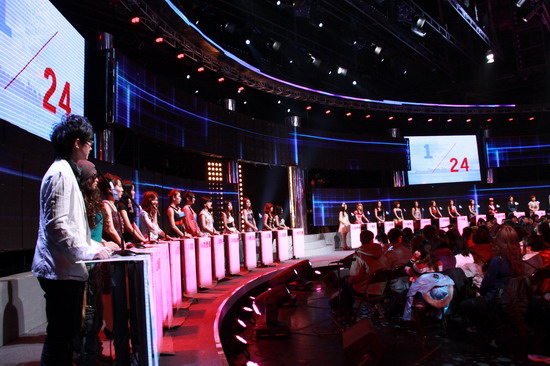
非誠勿擾真人Show

By admin, October 25, 2010 2:30 pm

fcwr

最近喜歡上了天天在Youtube看江蘇衛視的“非誠勿擾”節目。非誠勿擾真人Show嚴肅來的又很搞笑﹑作狀來的又很真實﹐有時浪漫得很感動人﹑有時又想上去抽他們兩巴掌﹗

我的意思是這個現在在大陸很火的節目至少出席的嘉賓或者表演者們的即場反應是很真的﹐“非誠勿擾”的確真實的反應了很多的現實社會現象﹐很到肉﹐所以我喜歡看﹗

Feature Request to Equallogic, please add READ ONLY to specific iSCSI initiator

By admin, October 22, 2010 10:55 pm

From Equallogic Support:

I believe our (Dell EqualLogic) intent was to either restrict access
on the volume level, not based on the ACL passed by the
initiator.  However, if you can express in writing exactly what you
would like to be added as a feature, why you would like this
feature, and how it would be beneficial to you within your
environment, we will create an enhancement request on your behalf.

Just be aware that submitting an enhancement requests does not
guarantee your request will be honored.  New features are added at
the sole discretion of the engineering team and will be added based
upon the needs of all customers and if the underlying code can/will
support the request.


My Reply:

It’s because many people use Veeam Backup to backup their VMs and in order for Veeam to use SAN offload feature (ie, directly backup the VM from SAN to backup server without going through ESX host), so we need to mount the VMFS Volume direclty from EQL to Windows Server Host and you may ask it will corrupt the VMFS volume which is concurrently mounted by ESX Host, NO it won’t as before mounting the volume on Windows Host, we issued automount=disable to make sure Windows Server won’t automatically initialize or format the volume by accident. (In fact, I found the mounted Equallogic volume under Disk Manager cannot be initialized, everything is gray out and it won’t show in IOMeter as well, but you can Delete Volume under Windows Server 2008 Disk Manager, strange!)

It will serve as a Double Insurance feature if EQL can implement such READ-ONLY to a specific iSCSI initiator that will greatly improve the protection of the attached volume for use of Veeam SAN Offload Backup.

I am sure there are many Veeam and Equallogic users would love to see this feature added.

Please kindly consider adding this feature in coming firmware release.

Thank you very much in advance!

Enable Copy & Paste when using VM Remote Console in ESX 4.1

By admin, October 21, 2010 12:38 am

To enable Copy & Paste option when using VM Remote Console in ESX 4.1:

1. Log into a vCenter Server system using the vSphere Client and power off the virtual machine.

2. Select the virtual machine, on the Summary tab click Edit Settings.

3. Navigate to Options > Advanced > General and click Configuration Parameters.

4. Click Add Row and type the following values in the Name and Value columns:

isolation.tools.copy.disable – false
isolation.tools.paste.disable – false

Veeam Backup & Replication v5 and ESX VAAI with Equallogic Array

By admin, October 20, 2010 4:39 pm

Count Down is on the way, only 6 hours left, it is probably the most anticipating problem in VMware ESX backup world in 2010!

veeam_v5


I’ve posted a question in Veeam’s forum asking the following and gained lots of knowledge regarding How Veeam backup works over SAN as well as Equallogic stuffs.

Veeam v5 can tell EQL to take a snapshot locally first using VAAI (ie, super fast), then send that Completed snapshot to Veeam Backup server for de-dupe and compression and then finally save to local storage on the backup server.

=====================================
For example, we have three kind of backup running at 6AM daily AT THE SAME TIME.

VMs are all on Equallogic SAN VMFS volume.

1. Acronis True Image backup inside each VM. (ie, File Level, backup time is 5-10 mins per VM)
2. Veeam Backup SAN (ie, Block Level, backup time is 1-5 mins per VM)
3. Equallogic Snapshot (ie, Block Level, backup time is 1-5 seconds for the whole array)

Will this actually create any problem? I mean LOCKING problem due to concurrent access to the same volume?

But Beginning with Equallogic version 5.0, the PS Series Array Firmware supports VMware vStorage APIs for Array Integration (VAAI) for VMware vSphere 4.1 and later. The following new ESX functions are supported:

• Harddware Assisted Locking – Provides an alternative meanns of protecting VMFS cluster file system metadata, improving the scalability of large ESX environments sharing datastores.

So this shouldn’t be a problem any more.

Any hints of recommendation?


I feel very happy now as finally VAAI can be used to greatly increase the snapshot performance and shorten the backup window, together with Veeam’s vStorage API, I am pretty sure the backup time is going to break the records shortly, I will report later after I installed B&R V5 tomorrow.

One more thing, I did try to use ASM/VE to backup and restore VM once for testing, I forgot if it’s with VAAI or not or if the FW is 4.3.7, but it’s quite slow and one thing I also don’t like is to backup snapshot onto the Same Array!

1. Array space is too expensive to place snapshot on it, at least for VM, I am ok with taking array snapshot for lun/volume only though to avoid array failure kind of disaster.

2. It’s not safe to place VM snapshot on the same array, what if the array crashes?

3. As an EQL user, everyone know that “Dirty Bit” problem (ie, once the block is written, there is no way to get it back.) In other words, it’s a great waste of deleted/empty space. Not Until EQL releases the Thin/Thick Space Reclaim feature in the coming FW5.x version, I think the technology is still not mature or ready yet to have VM snapshot to be placed on EQL volume. FYI, 3PAR is the only vendor having true Thin Space Reclaim, HDS reclaim is a “fake ” one, search google about a 3PAR guy commenting about HDS’s similar technology you will see what I mean.

4. Remember EQL use 16MB stripe? It means even there is 1K movement in block, EQL array will take the whole 16MB, so your snapshot is going to grow very very very very huge, what a waste! I really don’t understand why EQL designed their stripe size to 16MB instead of say 1MB, is it because 16MB can give you much better performance?

5. Another bad thing is even you buy a PS6500E with lots of cheap space, but you still can’t use ASM/VM to backup a VM on PS6000XV volume and place the snapshots on PS6500E, it HAS TO be the same array or pool and stay at PS6000XV, so seem there is no solution.

That’s why we finally selected Veeam B&R v5 Enterprise Edition and that’s how I arrived here and encounter all the great storage geeks!
=====================================

Some of the very useful feedbacks: 

 The EQL Snapshot is done on the EQL Hardware Level. The vmware snapshot is done at vmware level, with vaai hardware assisted but not done on the hardware level. (BUT if it is exactly that what you want DELL provides a cool tool named auto snapshot manager vmware edition, this will allow you to trigger a hardware snapshot exactly the same time a vcneter snapshot is triggered – good for volume shadow copy consistency).

The VEEAM Snapshot is done with vCenter Server or ESX/i directly using VAAI or not (dependes on your firmware and esx/i version). Don´t mix around Hardware Snapshots and hardware assisted snapshots, is is NOT the same.


That is correct, but at a very small time window, VAAI kicks in, when the snaphot is triggered, at this time VAAI kicks in with the locking mechanism. But then again, don´t mix it up with a hardware snapshot, VAAI can NOT trigger SAN-Vendor-specific hardware snapshots.

You can quite do a lot with Equallogic SAN, if you want it. There are many ways allowing you to trigger hardware snapshots if you want them triggered. So i suggest you take a look at

a) Auto Snapshot Manager VMware Edition
b) latest Host Integration Tools (H.I.T.)


Correct, but VEEAM/vmware-triggered snapshots, when doing backups at night, would not really grow that much because the time window for doing the backup is extremely small (when using high speed lan and cbt) – therfor me personally i have no problem with it – and even if it gets a problem: VEEAM has sophisticated mechanisms which allow you to safely break the backup operation if the snapshot grows too huge.


Update: Official Answer from Equallogic

Good morning, 

So, the question is does VMware’s ESX v4.1 VAAI API allow you to have one huge volume vs. the standard recommendation for more smaller volumes while still maintaining the same performance?

The answer is NO.  

Reason: The same reasons that made it a good idea before, still remain.   You are still bound by how SCSI works.  Each volume has a negotiated command tag queue depth (CTQ).  VAAI does nothing to mitigate this.   Also, until every ESX server accessing that mega volume is upgraded to ESX v4.1,  SCSI reservations will still be in effect.  So periodically, one node will lock that one volume and ALL other nodes will have to wait their turn.   Multiple volumes also allows you to be more flexible with our storage tiering capabilities.   VMFS volumes, RDMs and storage direct volumes can be moved to the most appropriate RAID member.

i.e. you could storage pools with SAS, SATA or SSD drives, then place the volumes in their appropriate pool based on I/O requirements for that VM.


So do you mean if we are running ESX version 4.1 on all ESX hosts, then we can safely to use one big volume instead of several smaller ones from now on? 

Re: 4.1. No.  The same overall  issue remains.  When all ESX servers accessing a volume are at 4.1, then one previous bottleneck of SCSI reservation and only that issue is removed.  All the other issues I mentioned still remain.   Running one mega volume will not produce the best performance and long term will be the least flexible option possible.   It would similar in concept to taking an eight lane highway down to one lane.


In order to fully remove the SCSI reservation, you need VAAI, so the combination of ESX v4.1 and array FW v5.0.2 or greater will be required.

As a side note, here’s an article which discusses how VMware uses SCSI reservations.  

http://kb.vmware.com/selfservice/microsites/search.do?language=en_US&cmd=displayKC&externalId=1005009

Here’s a brief snippet from the KB.

There are two main categories of operation under which VMFS makes use of SCSI reservations.

The first category is for VMFS data-store level operations. These include opening, creating, resignaturing, and expanding/extending of VMFS data-store.

The second category involves acquisition of locks. These are locks related to VMFS specific meta-data (called cluster locks) and locks related to files (including directories). Operations in the second category occur much more frequently than operations in the first category. The following are examples of VMFS operations that require locking metadata:
    * Creating a VMFS datastore
    * Expanding a VMFS datastore onto additional extents
    * Powering on a virtual machine
    * Acquiring a lock on a file
    * Creating or deleting a file
    * Creating a template
    * Deploying a virtual machine from a template
    * Creating a new virtual machine
    * Migrating a virtual machine with VMotion
    * Growing a file, for example, a Snapshot file or a thin provisioned Virtual Disk


Follow these steps to resolve/mitigate potential sources of the reservation: 

a.Try to serialize the operations of the shared LUNs, if possible, limit the number of operations on different hosts that require SCSI reservation at the same time.

b.Increase the number of LUNs and try to limit the number of ESX hosts accessing the same LUN.

c.Reduce the number snapshots as they cause a lot of SCSI reservations.

d.Do not schedule backups (VCB or console based) in parallel from the same LUN.

e.Try to reduce the number of virtual machines per LUN. See vSphere 4.0 Configuration Maximums and ESX 3.5 Configuration Maximums.

f.What targets are being used to access LUNs?

g.Check if you have the latest HBA firmware across all ESX hosts.

h.Is the ESX running the latest BIOS (avoid conflict with HBA drivers)?

i.Contact your SAN vendor for information on SP timeout values and performance settings and storage array firmware.

j.Turn off 3rd party agents (storage agents) and rpms not certified for ESX.

k.MSCS rdms (active node holds permanent reservation). For more information, see ESX servers hosting passive MSCS nodes report reservation conflicts during storage operations (1009287).

l.Ensure correct Host Mode setting on the SAN array.

m.LUNs removed from the system without rescanning can appear as locked.

n.When SPs fail to release the reservation, either the request did not come through (hardware, firmware, pathing problems) or 3rd party apps running on the service console did not send the release. Busy virtual machine operations are still holding the lock.

Note: Use of SATA disks is not recommended in high I/O configuration or when the above changes do not resolve the problem while SATA disks are used. (ie, USE SAS 10K or 15K or EVEN SSD should greatly help!)


An updated review from InfoWorld about New EqualLogic firmware takes a load off VMware

Fine Tune Windows Server 2008 R2 TCP setting for Equallogic iSCSI SAN

By admin, October 20, 2010 11:32 am

To show Glbal TCP Parameters:
netsh int tcp show global

1. How to enable and disable TCP Chimney Offload (aka TCP offload) in Windows Server 2008 R2:
netsh int tcp set global chimney=enabled
netsh int tcp set global chimney=disabled

Determine whether TCP Chimney Offload is working, type “netstat –t” the line shows “Offloaded” is with Offloaded feature enabled.

2. How to enable and disable RSS in Windows Server 2008 R2:
netsh int tcp set global rss=enabled

3. Disable TCO Autotuninglevel in Windows Server 2008 R2 for performance gain in iSCSI
netsh interface tcp set global autotuninglevel=disabled


Update Jan-24:

I simple enabled everythingand found there is no difference on Equallogic iSCSI IOMeter performance.

TCP Global Parameters
———————————————-
Receive-Side Scaling State          : enabled
Chimney Offload State               : enabled
NetDMA State                        : enabled
Direct Cache Acess (DCA)            : enabled
Receive Window Auto-Tuning Level    : normal
Add-On Congestion Control Provider  : ctcp
ECN Capability                      : enabled
RFC 1323 Timestamps                 : disabled


DCA should be enabled with multi-core processors whenever RSS is enabled.  It allows for NETDMA clients to indicate that destination data is targeted for a particular CPU cache and this is what we want with high-performance IO like iSCSI.

ECN is Explicit Congestion Notification and is enabled by default and is a little more complex as it tweaks TCP protocol when sending a SYN and is mostly used by routers and firewalls. Since the default is enabled, I’d just set it to the default and be done with it.

Pages: Prev 1 2 3 4 5 6 7 ...88 89 90 ...102 103 104 Next